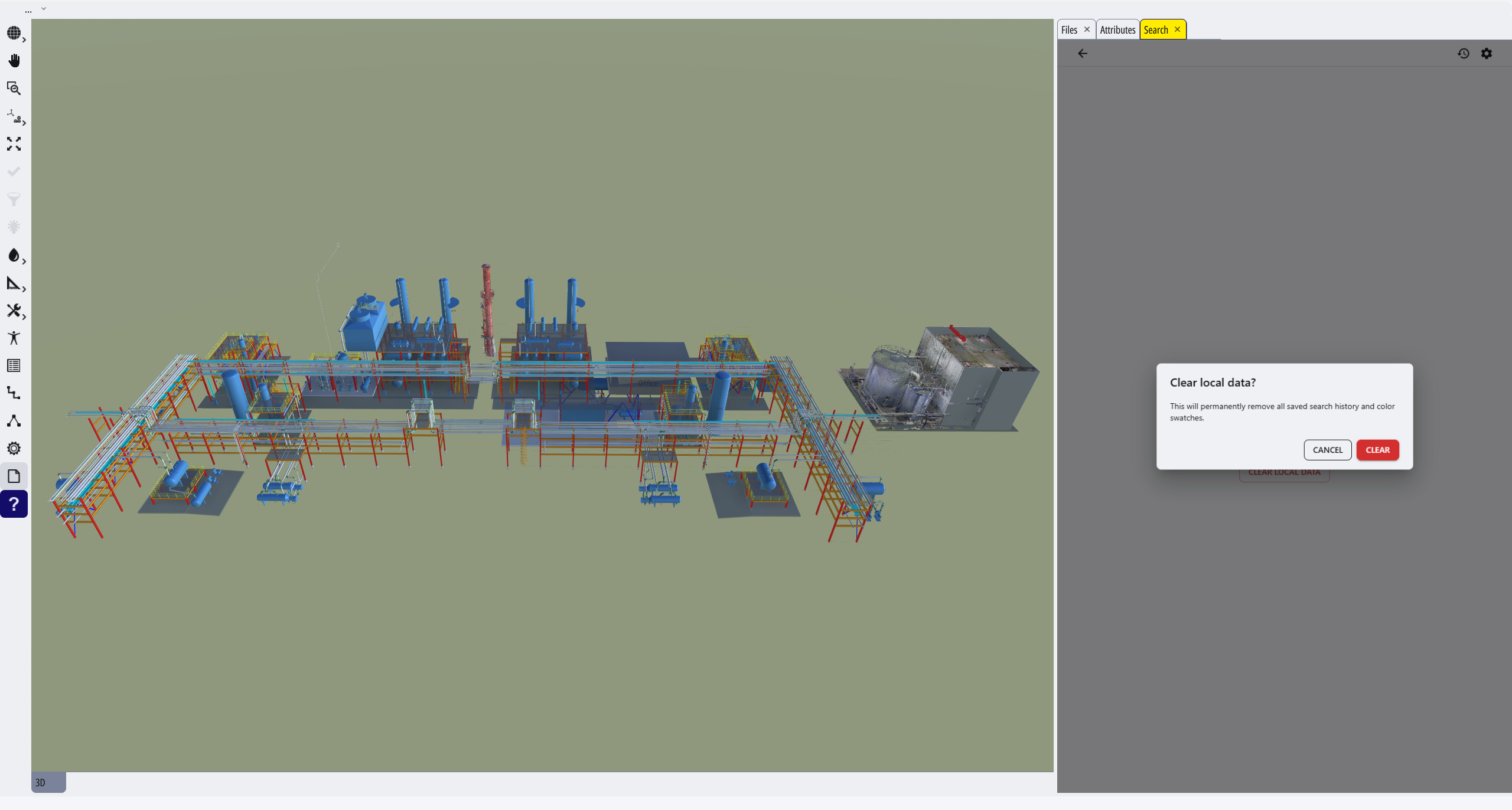
Offline AppControl Search is a search panel for 3D models and 2D drawings. Build anything from a single condition to a complex multi-condition query with nested AND and OR logic, and the tool returns every object whose data matches. Results are acted on directly in the viewer: selected, highlighted, isolated, colored, or hidden.
The tool provides:
- Text, numeric, and date searches across all properties at once, or narrowed to specific ones
- Nested condition groups combining conditions with AND or OR logic
- Viewer actions applied to matches: select, fit, highlight, show only, hide, and color
- Grouped results organized by the property that matched
- Search history that saves every run, with rename, re-run, export, and import
- Preset searches loaded from a file on startup
Overview
What This Tool Does
Offline AppControl Search locates scene objects by the information attached to them. Instead of clicking through the model or drawing by hand, build a search from known property values and the tool returns the matches.
It works across both 3D models and 2D drawings. The available properties load directly from the viewer and can be refreshed at any time, which matters when switching to a different drawing with its own set of properties.
Main Areas of the App
The app is organized into four areas, each covering a different part of the search workflow.
Search Builder. Create and run a search. Enter one or more conditions, choose how they combine, and decide what actions apply when matches are found.
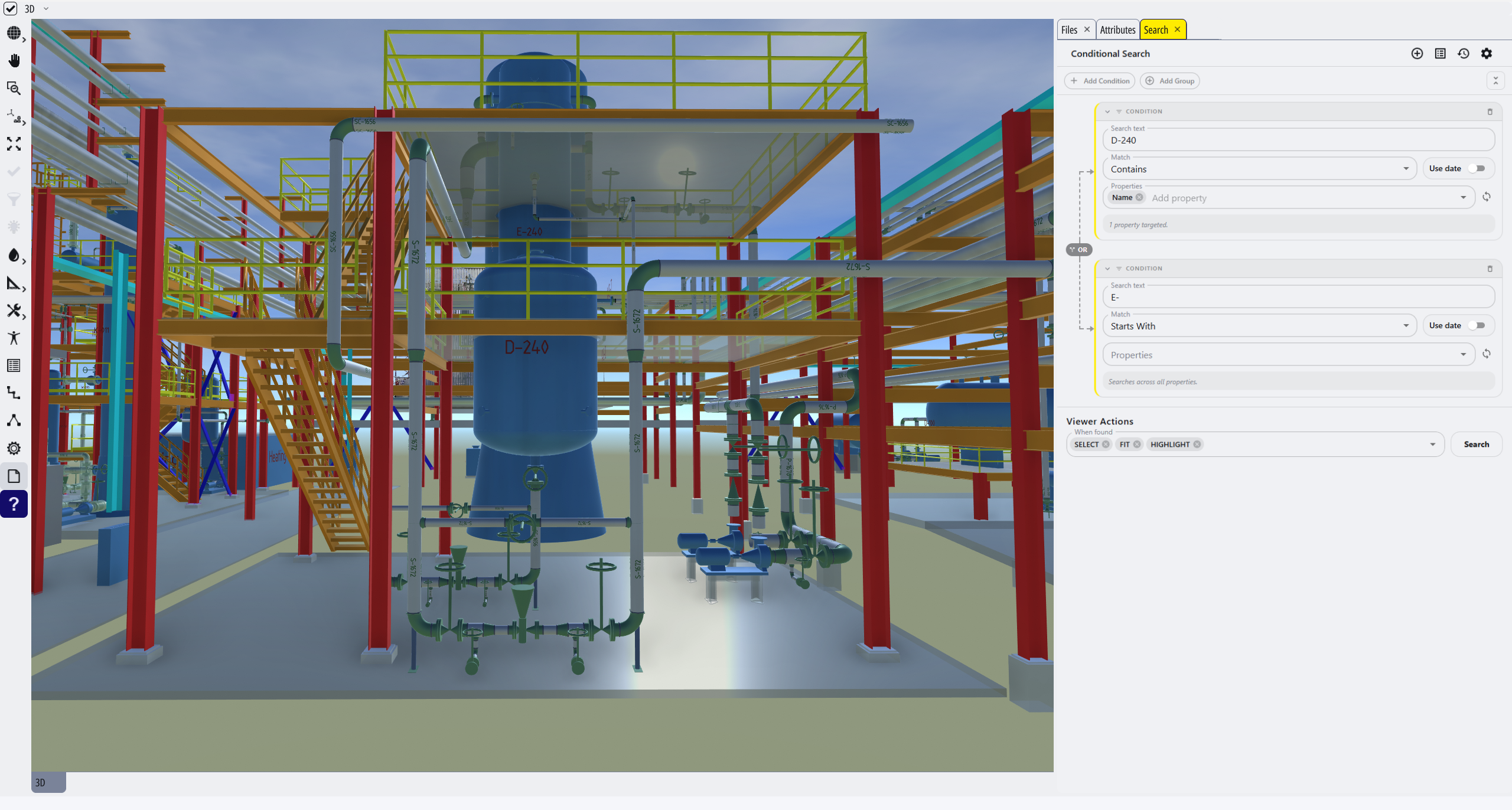
Results. Matching items appear here after a search runs, grouped so it is clear what matched.
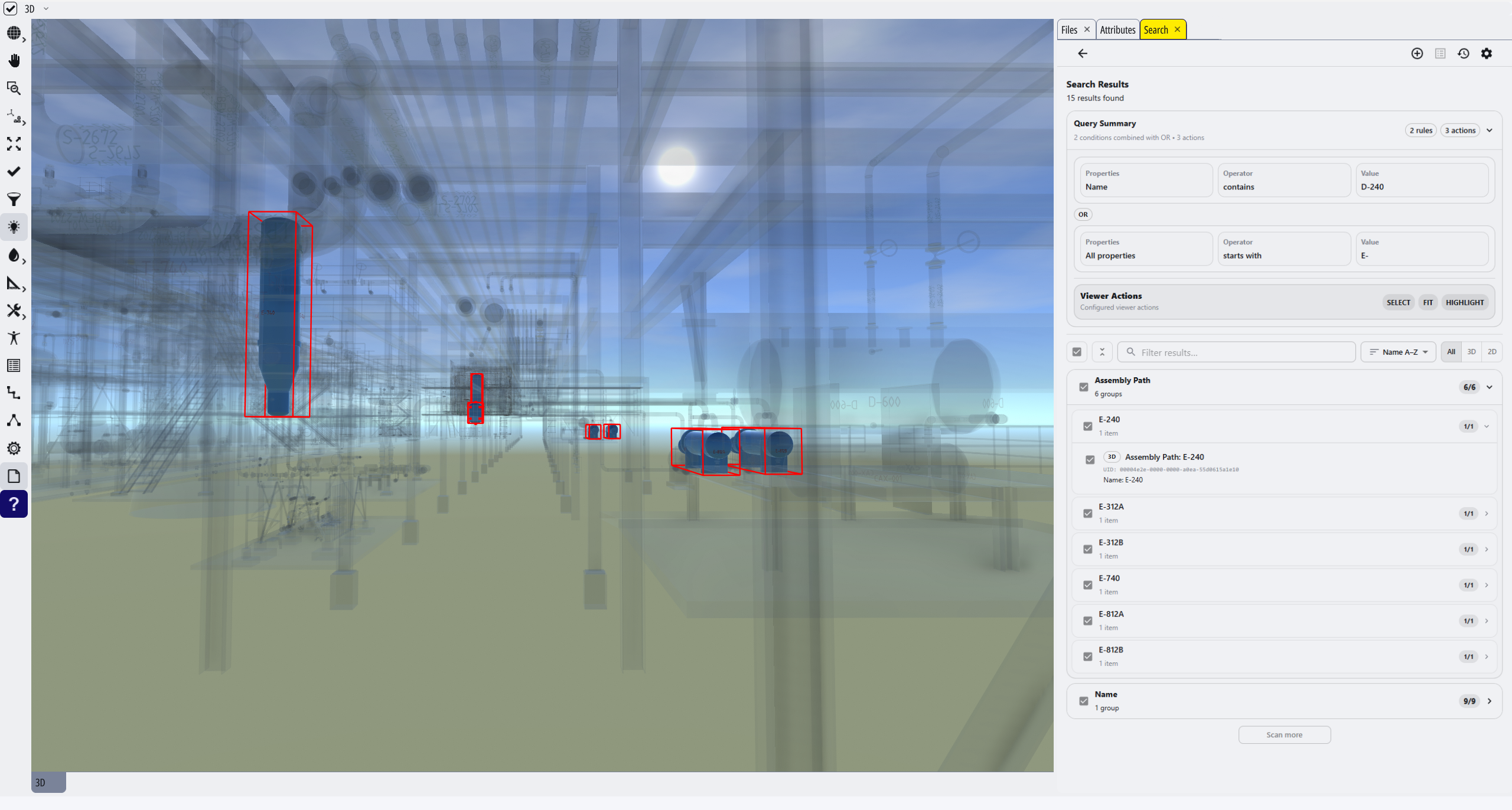
History. Previous searches are stored automatically. Revisit them, run them again, load them back into the editor, or export them.
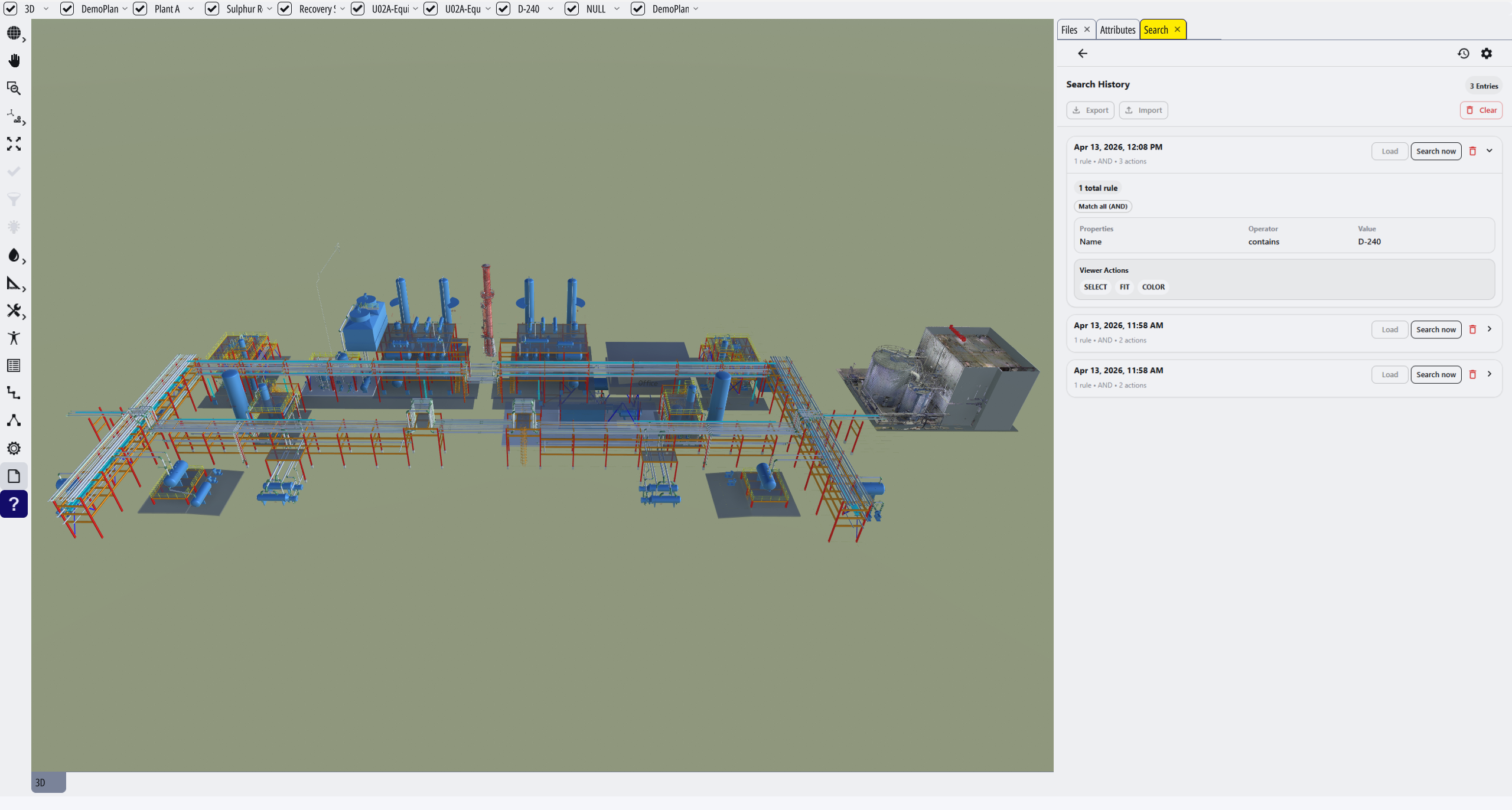
Settings. Clear saved local data such as search history and color swatches.
Building a Search
A search is defined by one or more conditions. A condition says what value to look for, how to compare it, and optionally where to look.
Each condition has:
- A value to search for.
- A matching rule. For text and numeric searches these are Contains (value appears anywhere in the property), Equals (exact match), Not Equals (excludes exact matches), Starts With, Greater Than, and Less Than.
- For date searches, enabled with the Use date toggle, the rules are Before, After, Exactly On, and Between.
- Optional property filters that narrow the search to selected properties.
Leaving the properties field empty searches across all available properties. Selecting one or more properties checks only those.
Note: Date conditions require at least one property to be selected. Searching all properties is not supported in date mode.
Add multiple conditions to a group and choose whether all of them must match (Match all) or any one is enough (Match any). For more complex queries, add nested AND or OR groups inside the main group. New conditions and groups can only be added once the existing ones are filled in.
Press Enter or click Search to run. While a search is in progress, a Stop button appears if you need to cancel it.
Viewer Actions
Before running the search, choose what the viewer should do with the items that match. One or more actions can be active at once.
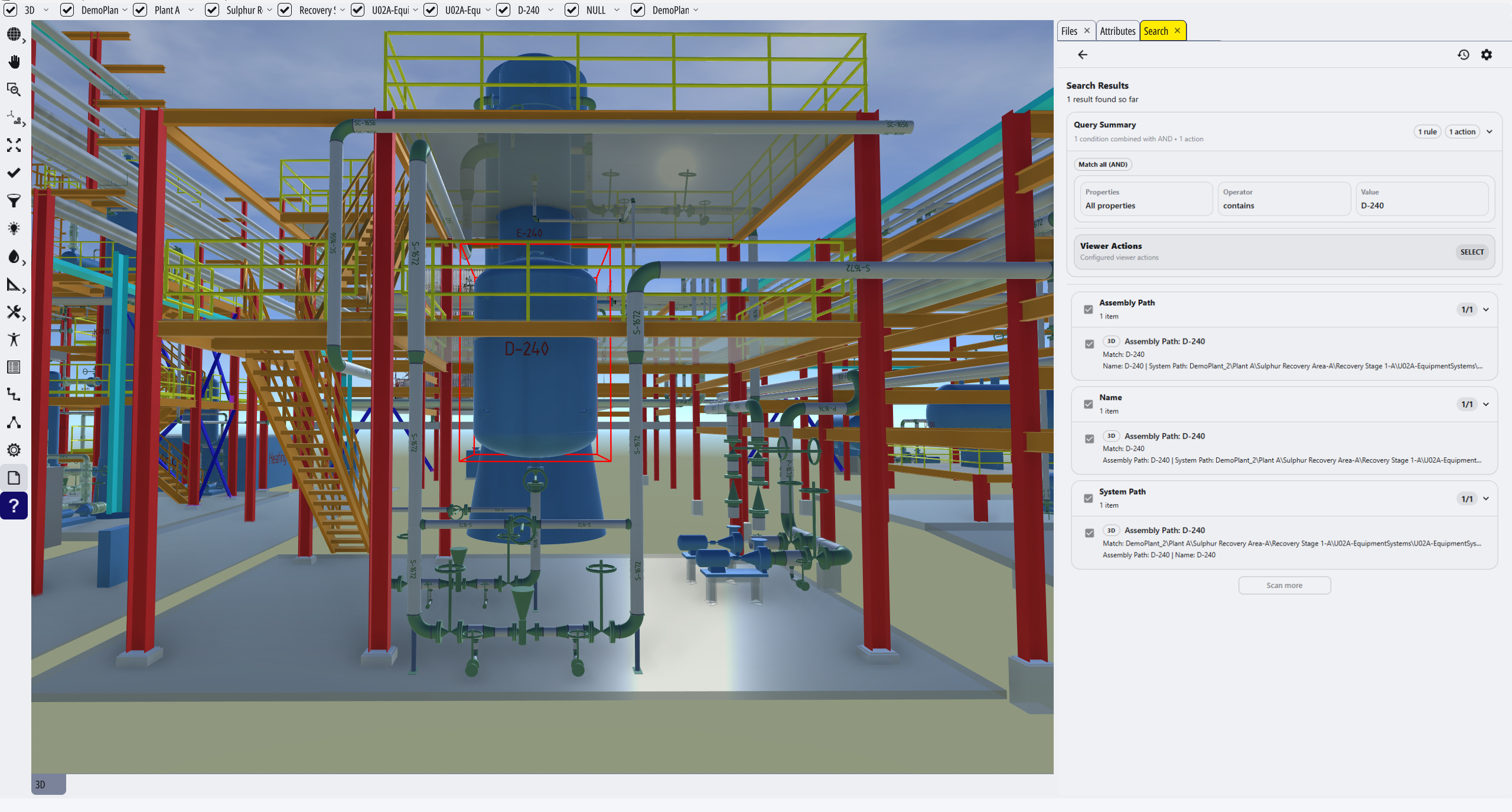
Select. Marks the matching items as selected in the viewer.
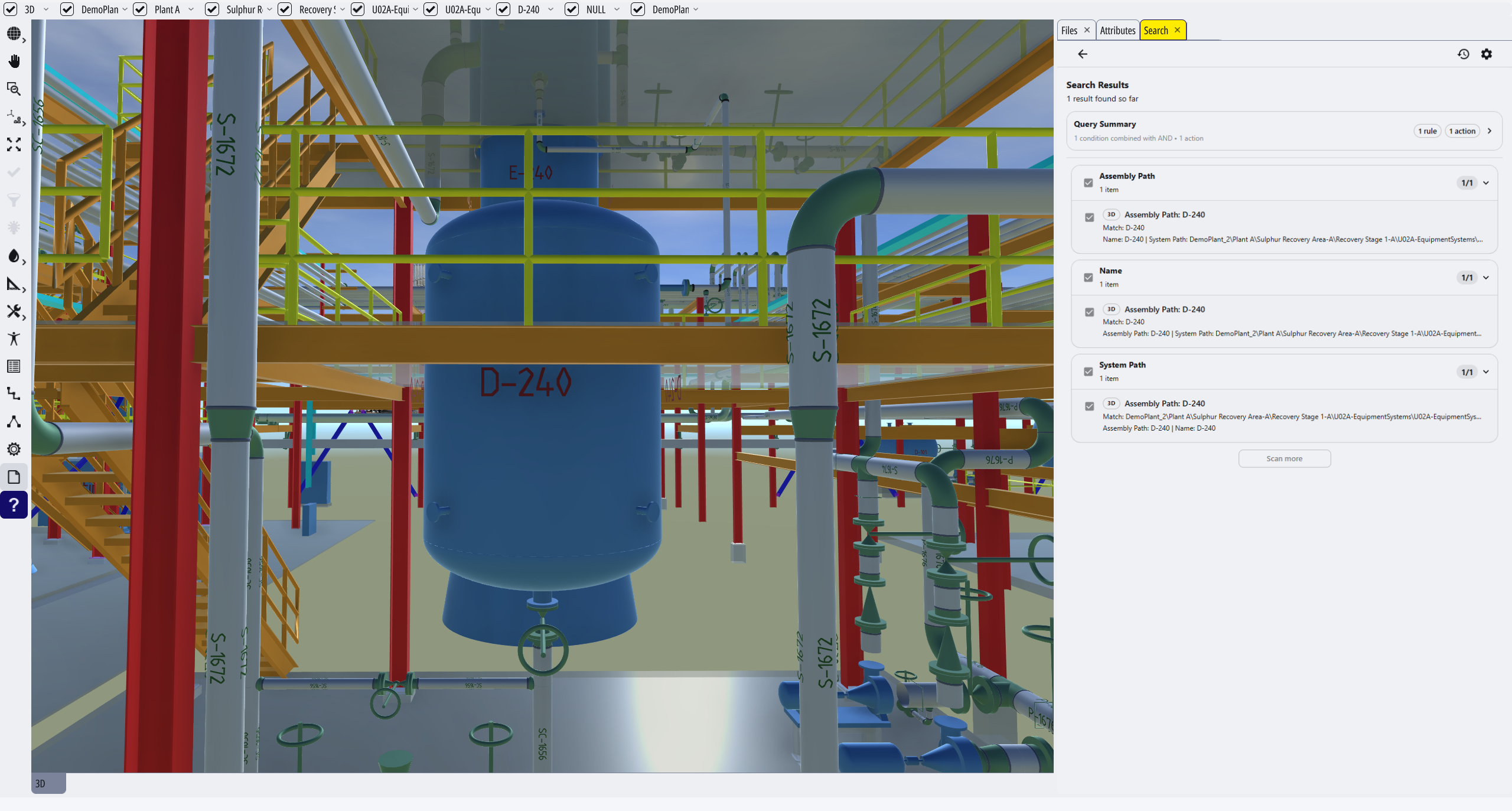
Fit. Moves and zooms the camera to frame all matching items in view.
Highlight. Applies a visual highlight to matching items so they stand out.
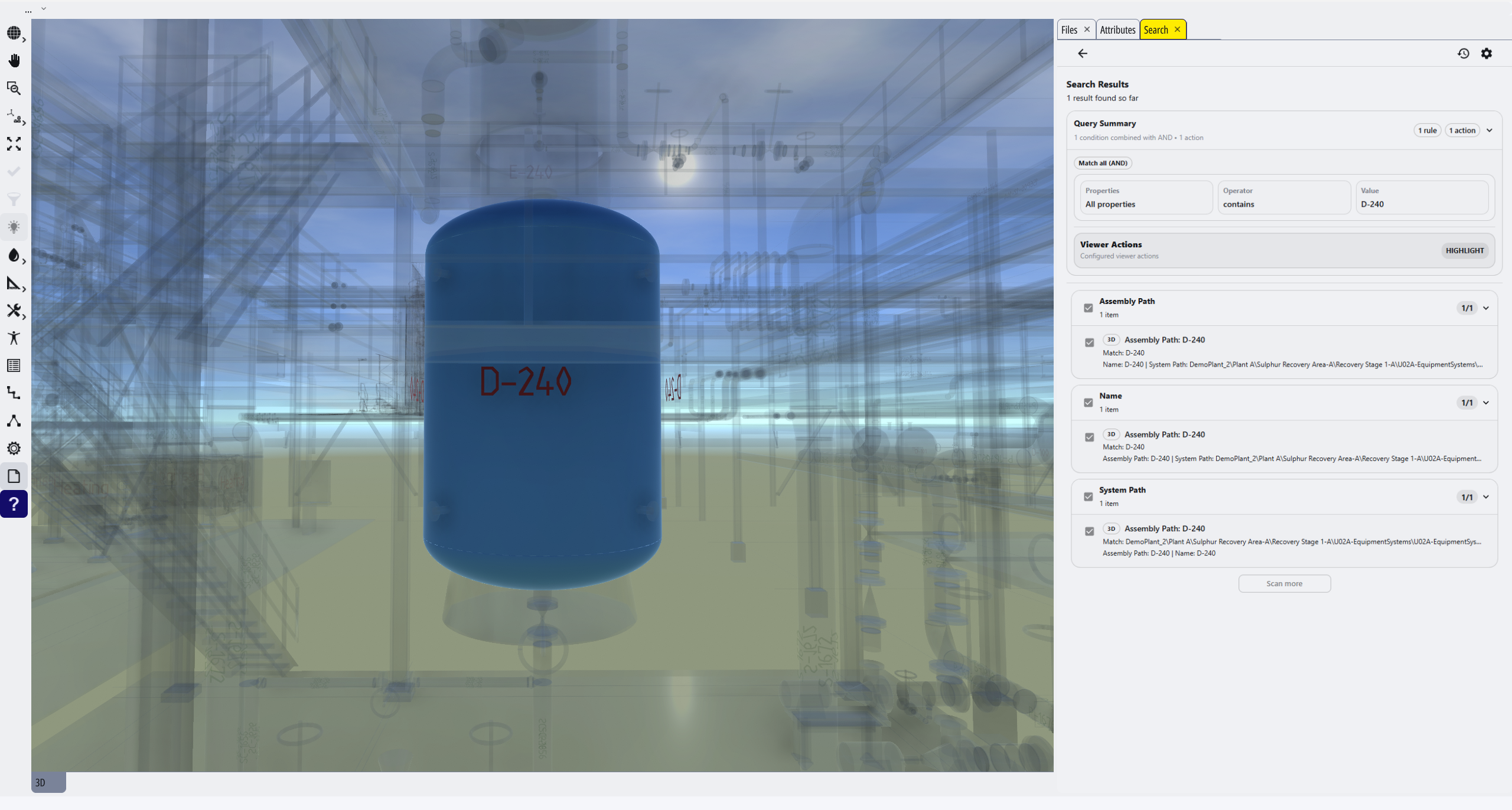
Show Only. Hides everything in the scene except the matching items.
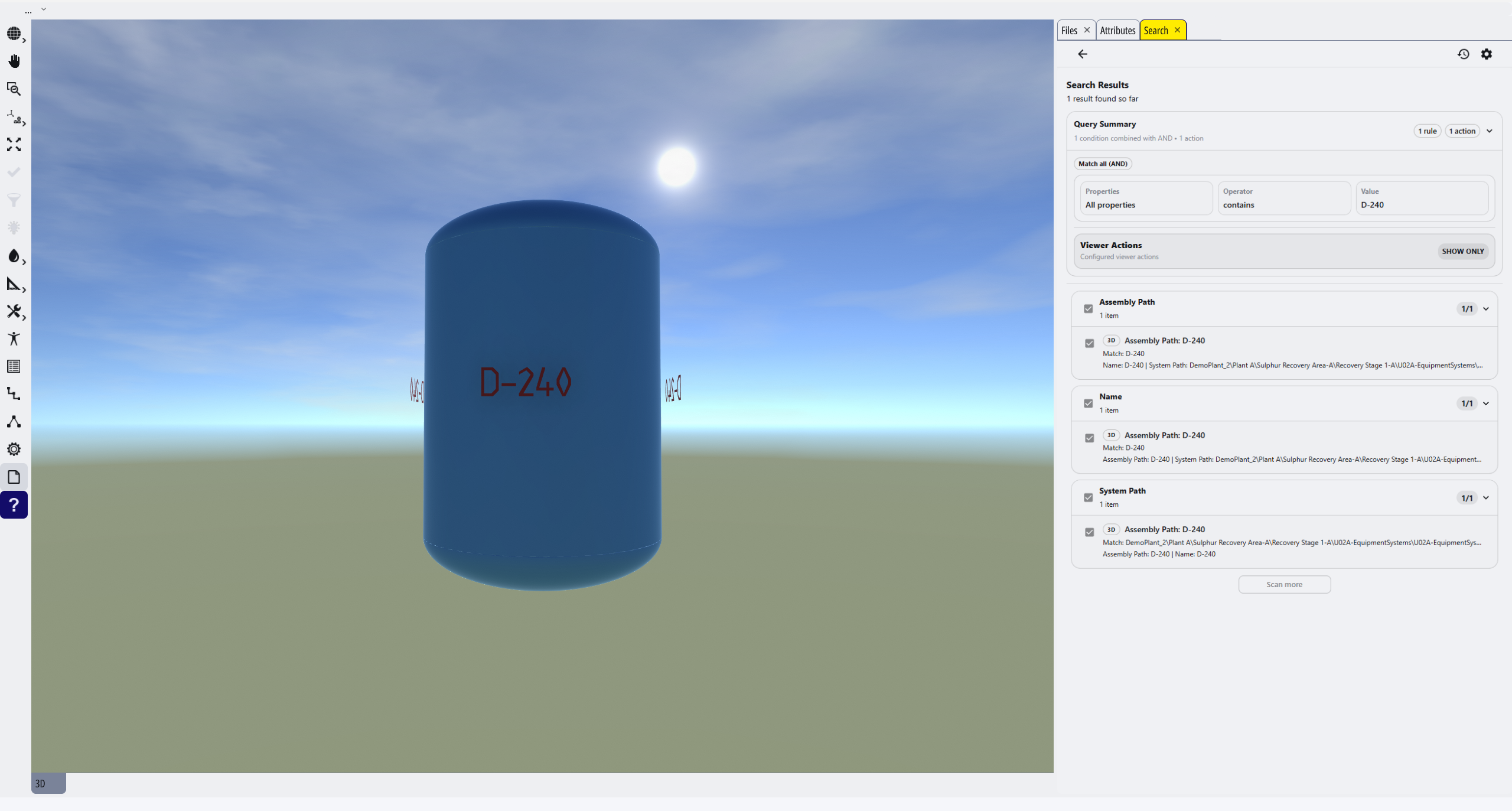
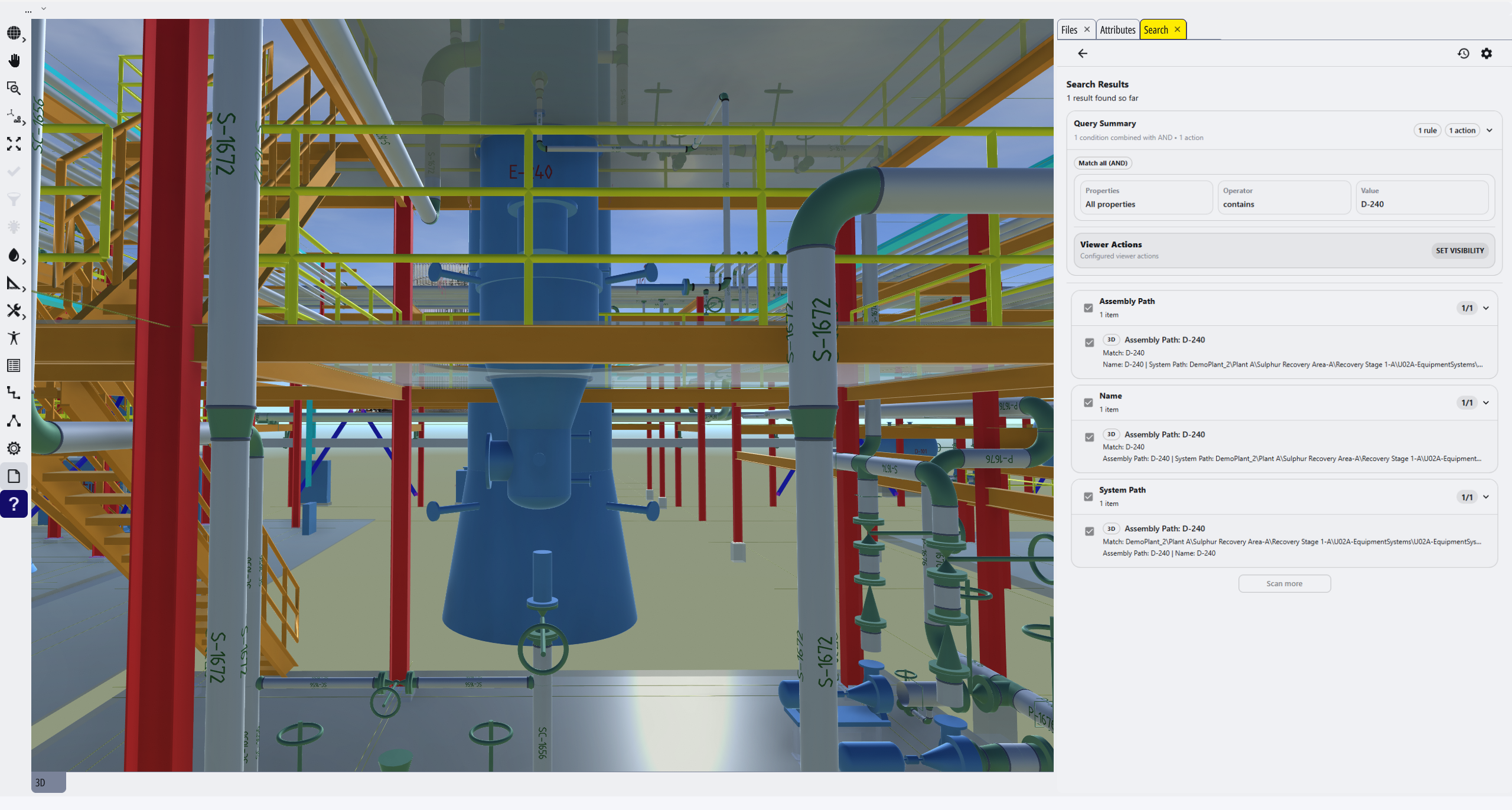
Hide. Removes matching items from view without affecting anything else.
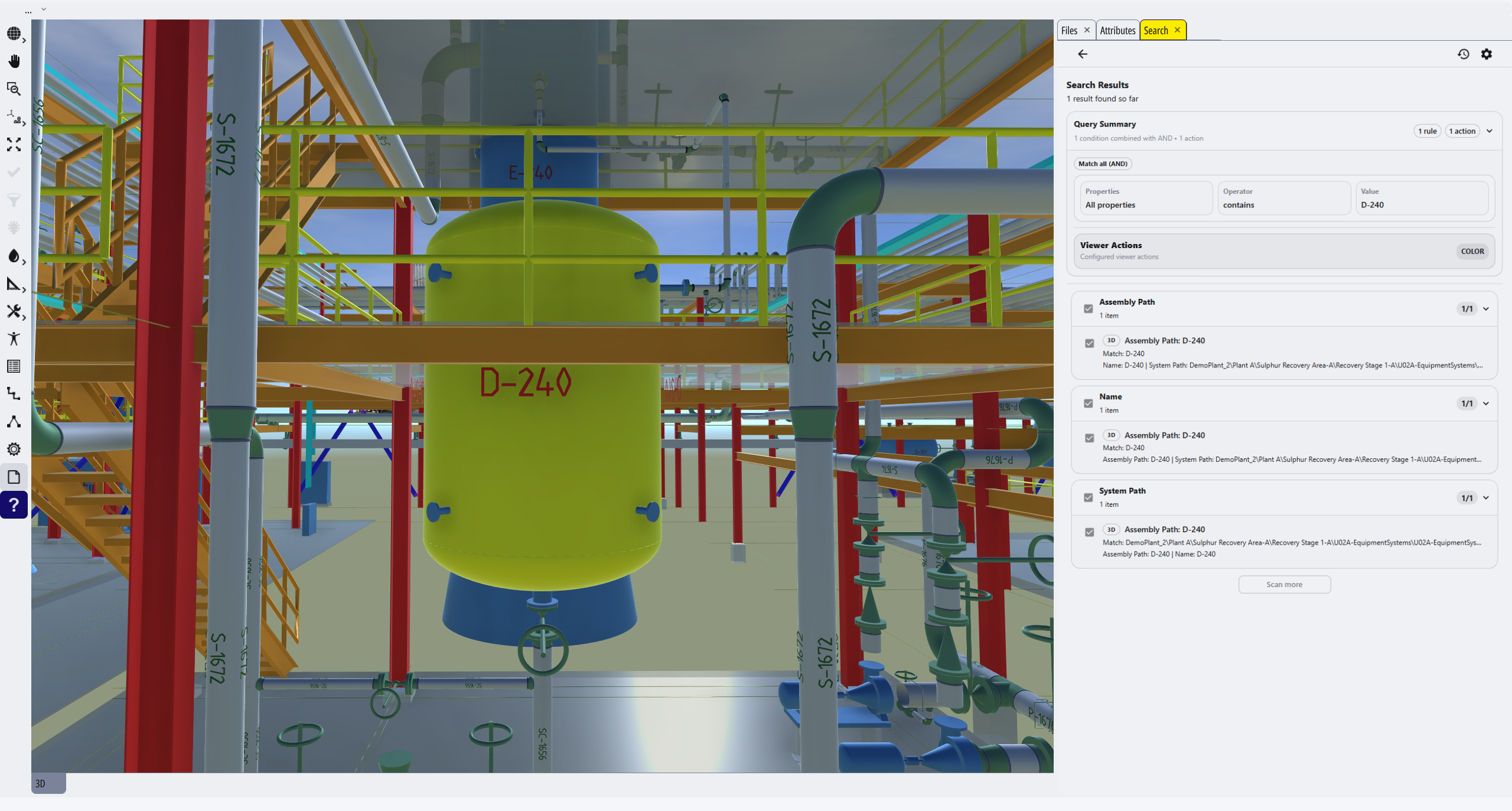
Color. Applies a chosen color to matching items. A color picker appears when this action is selected.
Viewing and Working with Results
Results are grouped by the property that matched, which makes it clear why an object was returned and keeps larger result sets organized.
Each result group shows the property name and the number of matching items in that group. Within a group, results may show the item name, whether it is a 3D or 2D item, the matched value, and other related property details.
Results can be acted on directly from this tab:
- Click an item to move the view to it.
- Toggle an item with its checkbox to run the configured viewer actions for that item.
Search History
Every search you run is saved automatically in the History tab, so earlier searches do not have to be rebuilt from scratch.
From the History tab you can:
- Run a saved search again with Search Now.
- Load a saved search back into the Search tab with Load.
- Rename an entry by clicking its title.
- Export all saved history to a JSON file.
- Import a previously exported history file.
- Delete individual entries, or clear all saved history.
A preset file can also populate history automatically on startup. If a file named search-presets.json is placed in the model's Data folder, the tool loads it when the app initializes and overwrites the current history with its entries. The preset file uses the same format as an exported history file, so an existing export can be used directly as a preset.
Settings
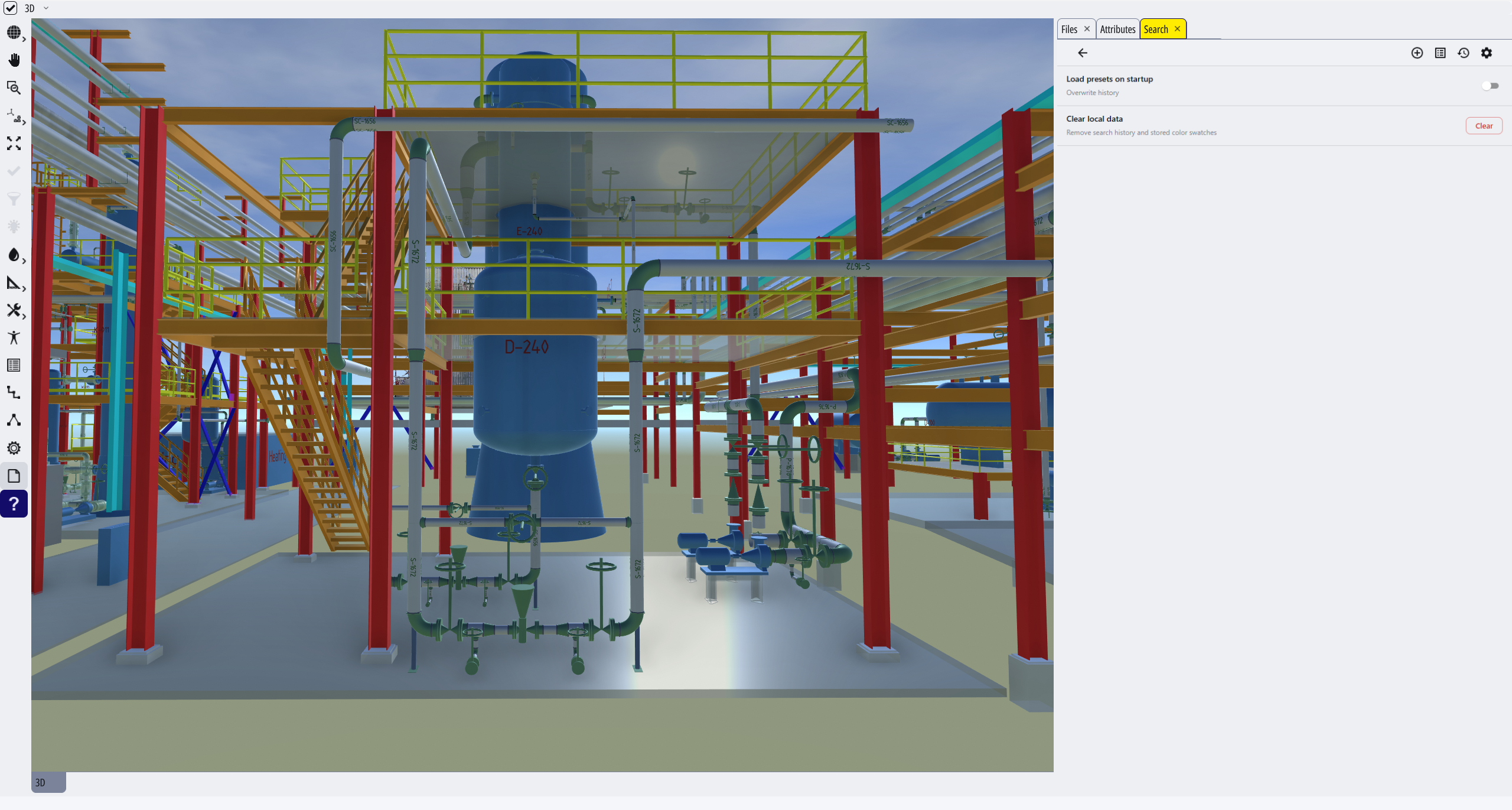
The Settings tab controls how locally stored data is managed and whether preset searches load automatically.
There are two options:
- Load presets on startup. Toggles whether a
search-presets.jsonfile in the model'sDatafolder is loaded on startup, overwriting the current history with the preset entries. - Clear local data. Permanently removes all saved search history and color swatches.